Introducing Generative Sliders
by The Krea Team
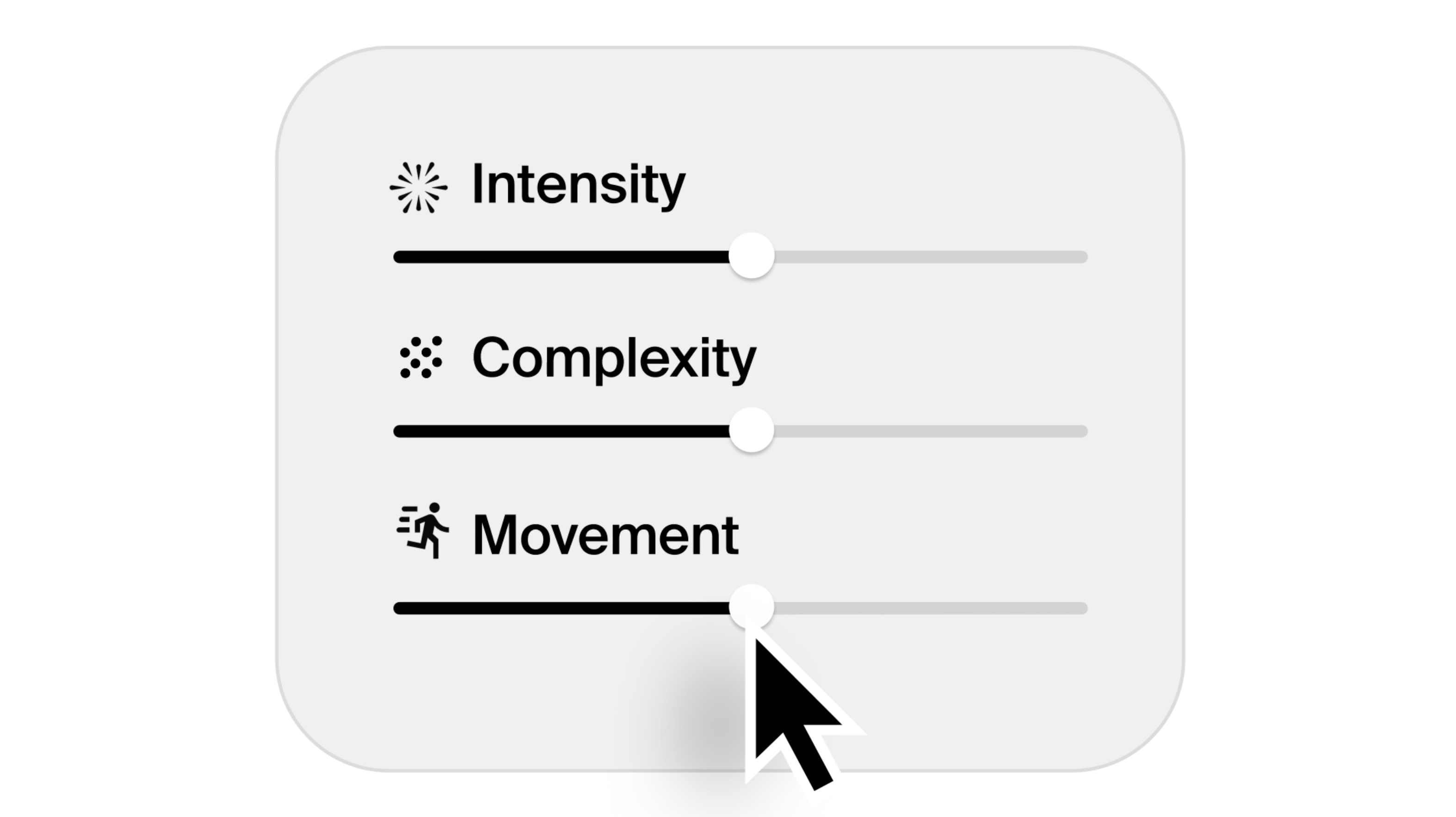
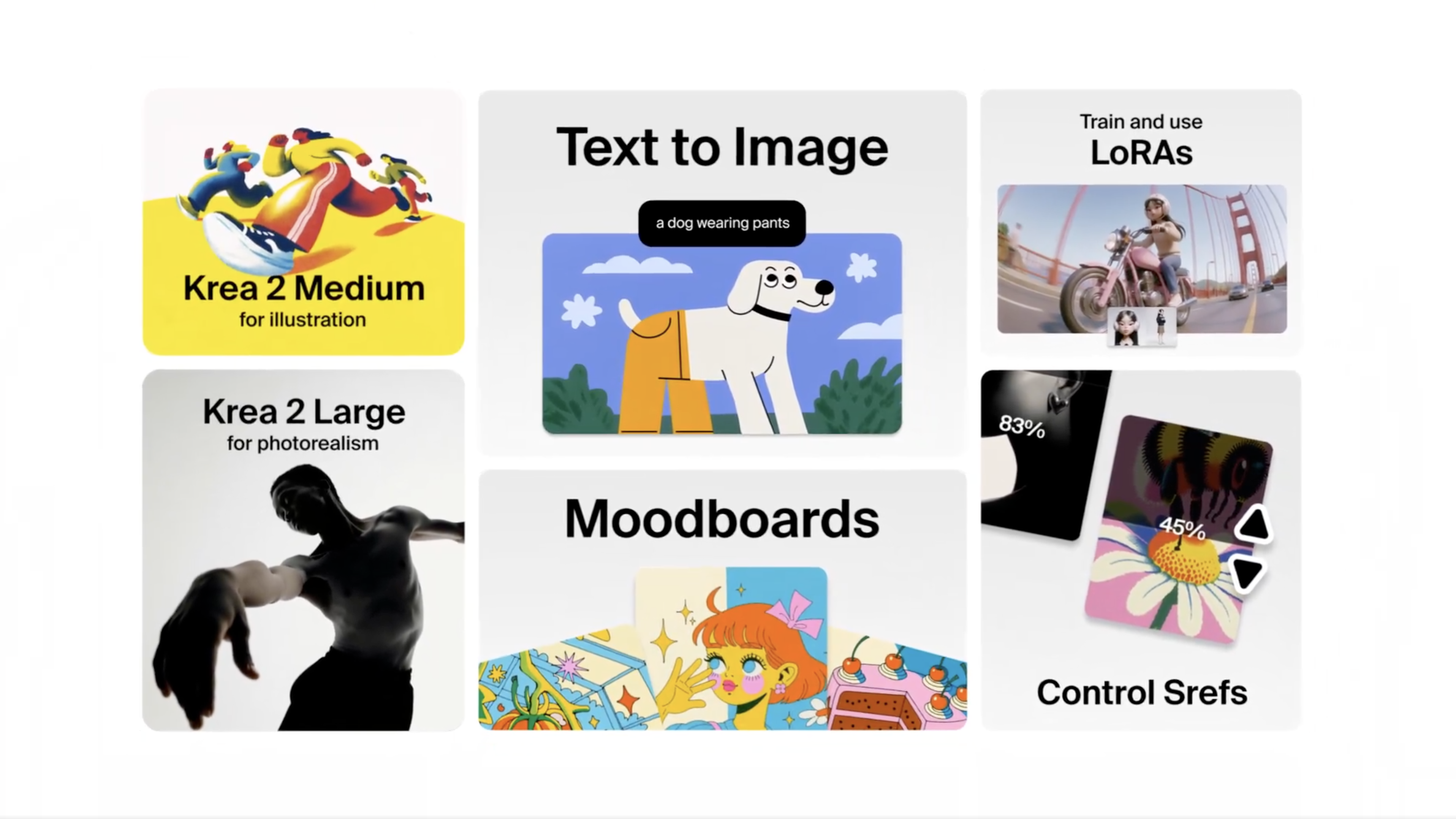
Krea 2 now gives you more control before the image is generated. Generative Sliders let you shape the model’s creative direction while keeping your original prompt intact, so you can explore different outcomes without rewriting the same idea over and over.
Open the controls panel in the Krea 2 image tool to adjust Intensity, Complexity, and Movement, choose a Creativity mode, randomize settings for exploration, or reset everything back to neutral.
What Generative Sliders Control
The Generative Sliders panel gives you direct control over four parts of the generation process:
| Control | What it changes |
|---|---|
| Intensity | Moves from quieter, more muted images to more strongly stylized images. |
| Complexity | Moves from simpler, more minimal compositions to denser, more visually complex images. |
| Movement | Moves from more static images to more dynamic compositions with stronger camera angle, pose, and motion energy. |
| Creativity | Controls how much Krea expands or interprets your prompt before generation. |
Intensity, Complexity, and Movement are centered Generative Sliders. A value of 0 is neutral. Moving left reduces that quality; moving right increases it.
See Generative Sliders In Action
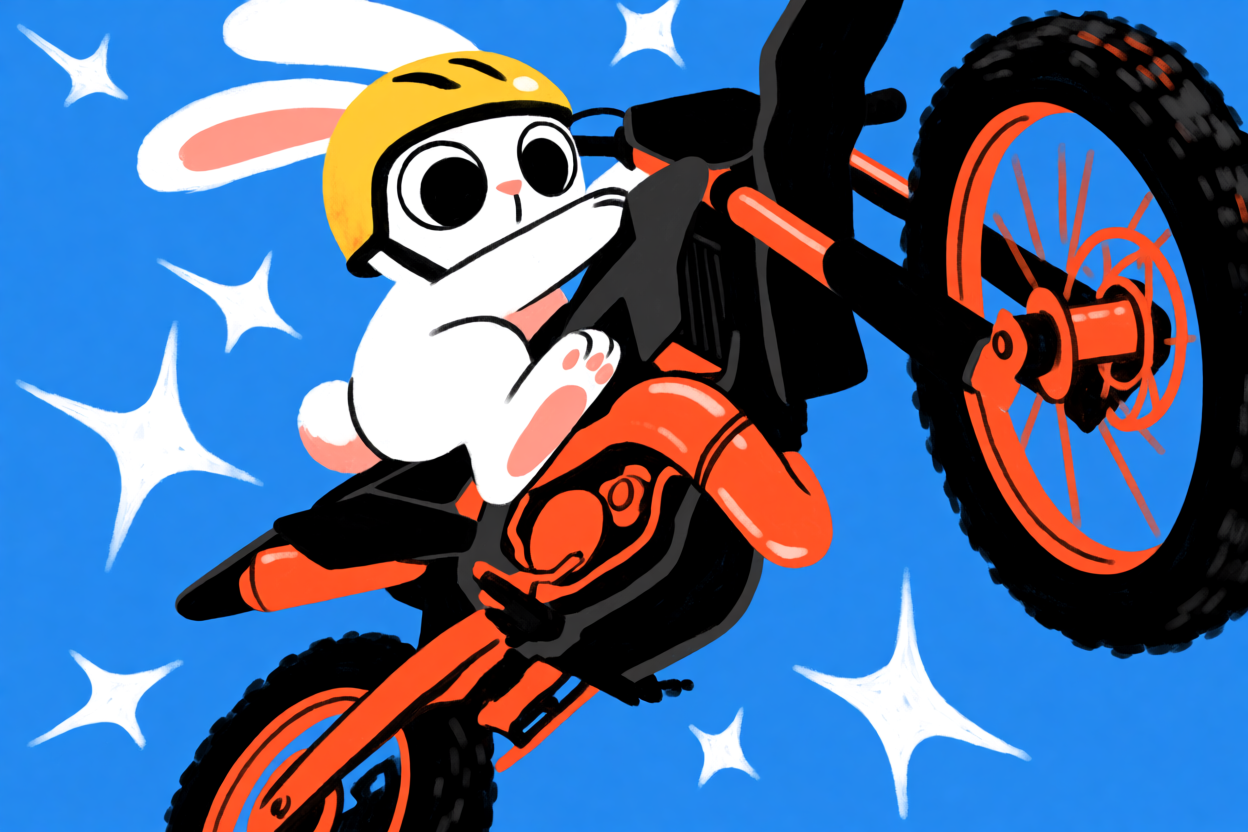
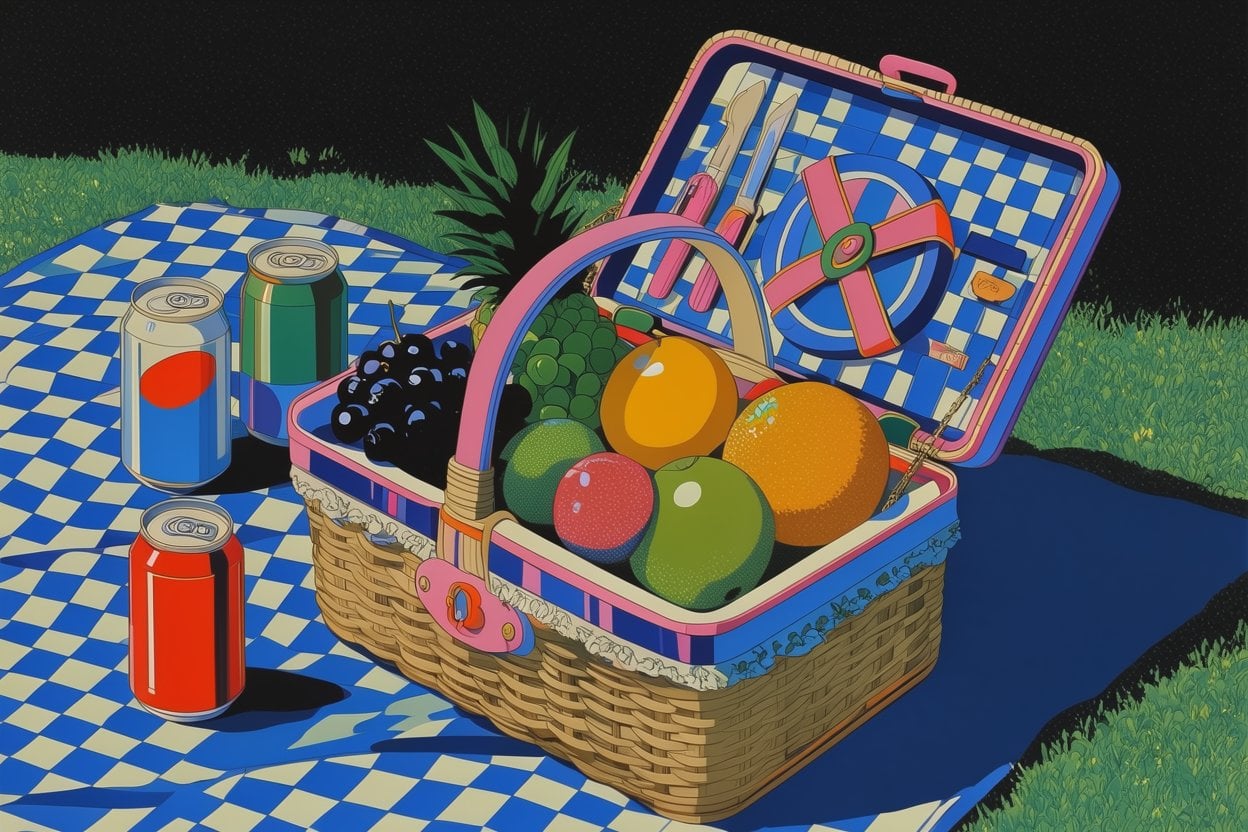
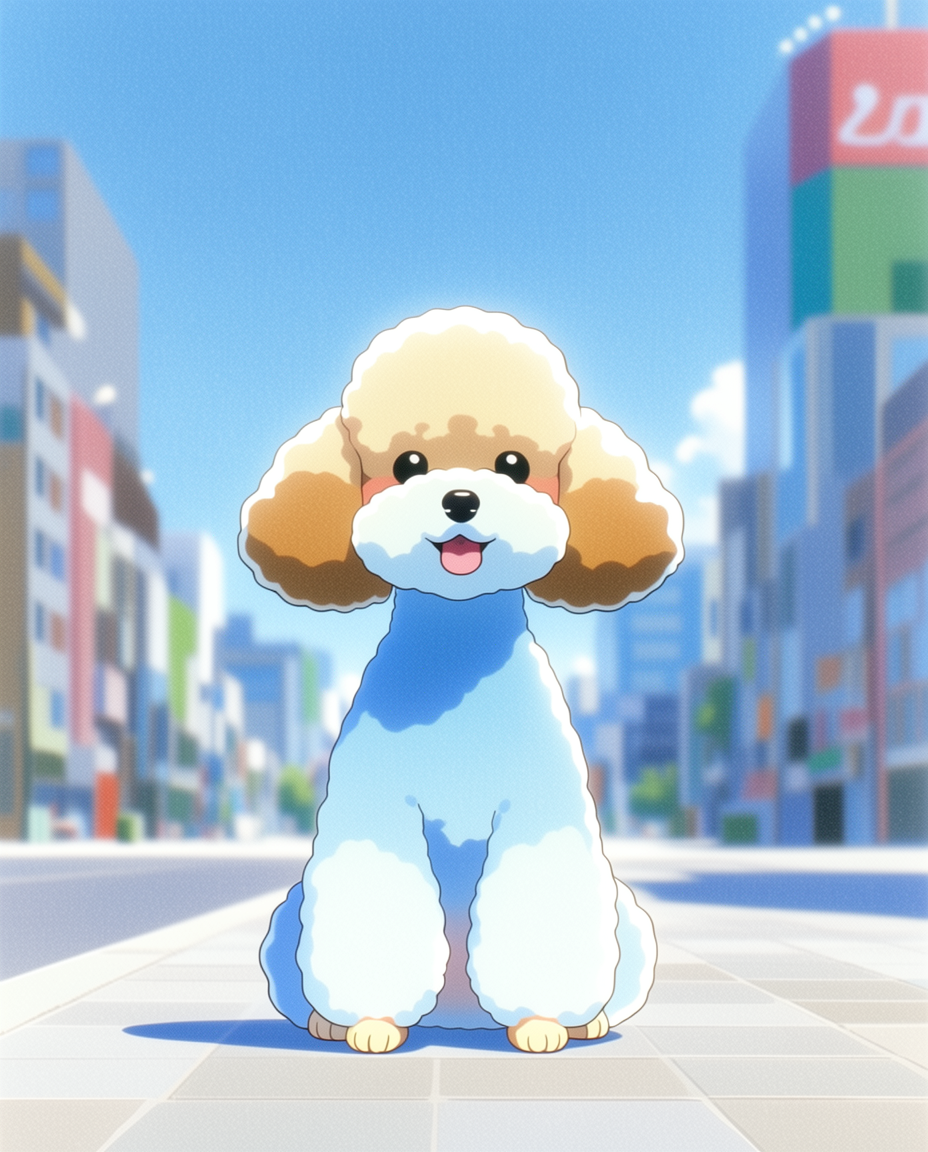
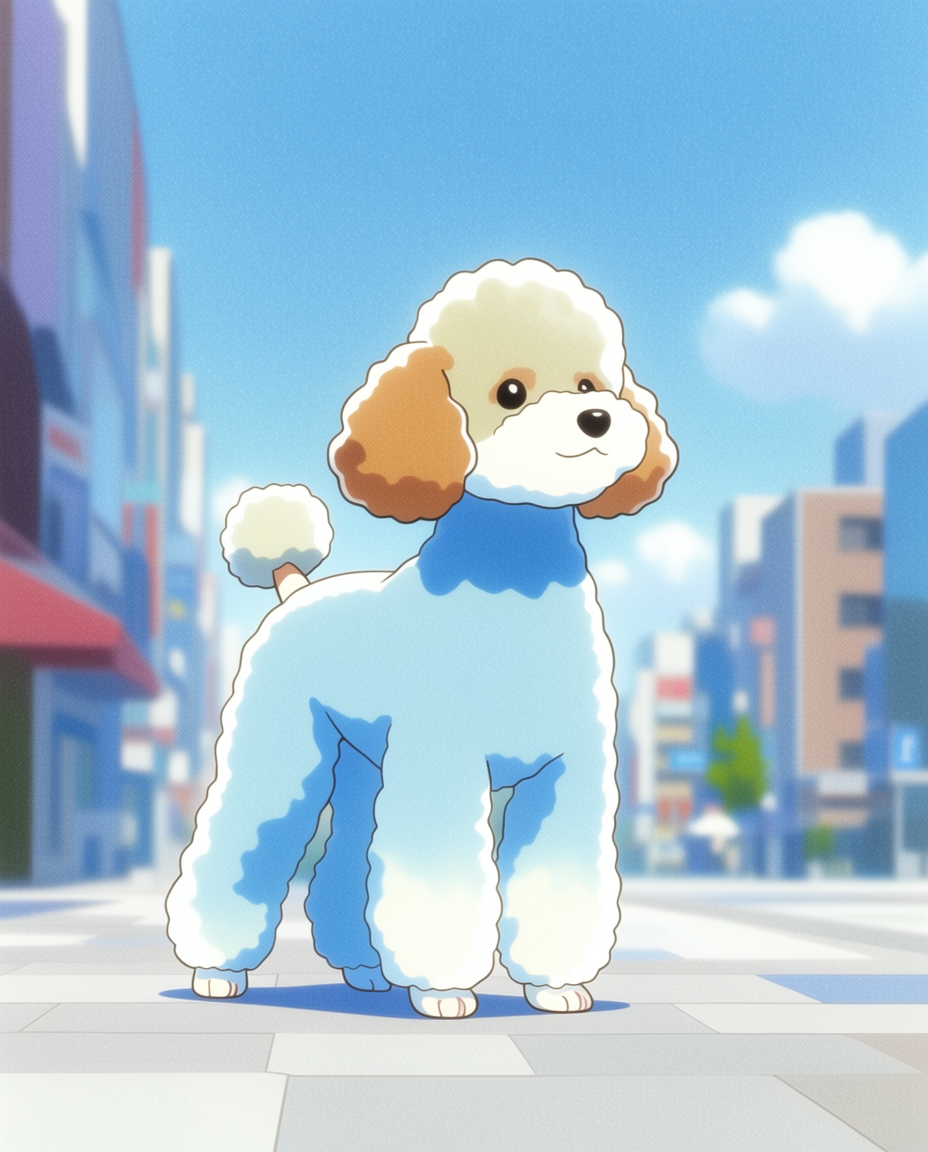
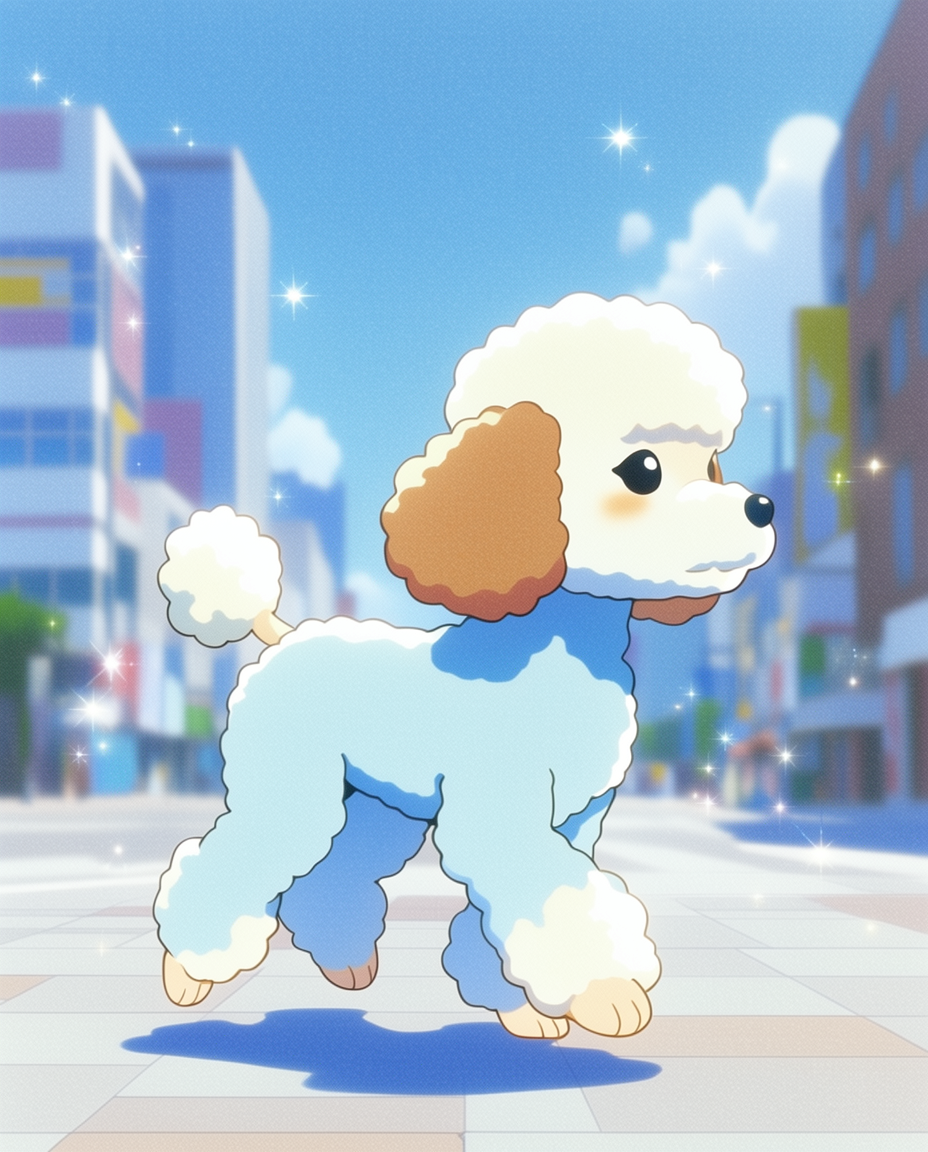
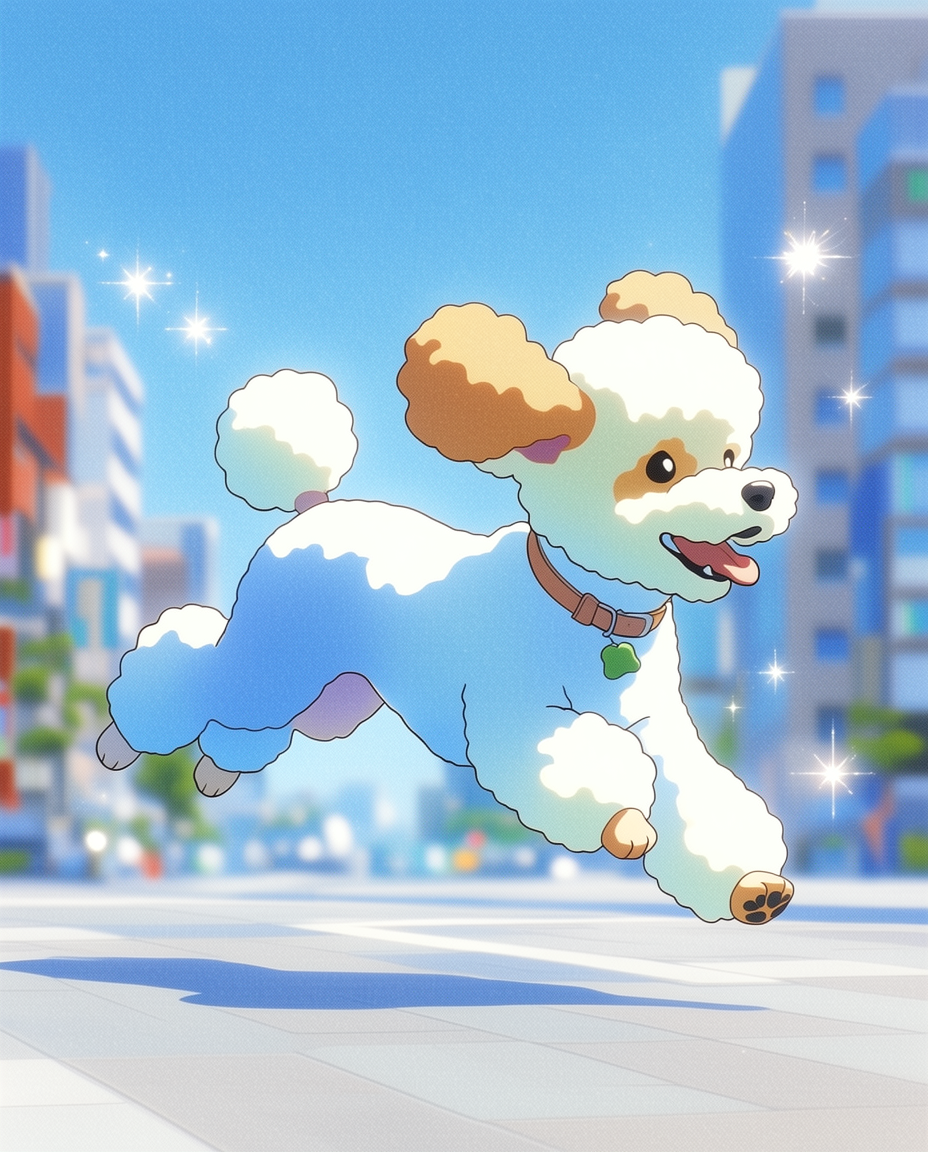
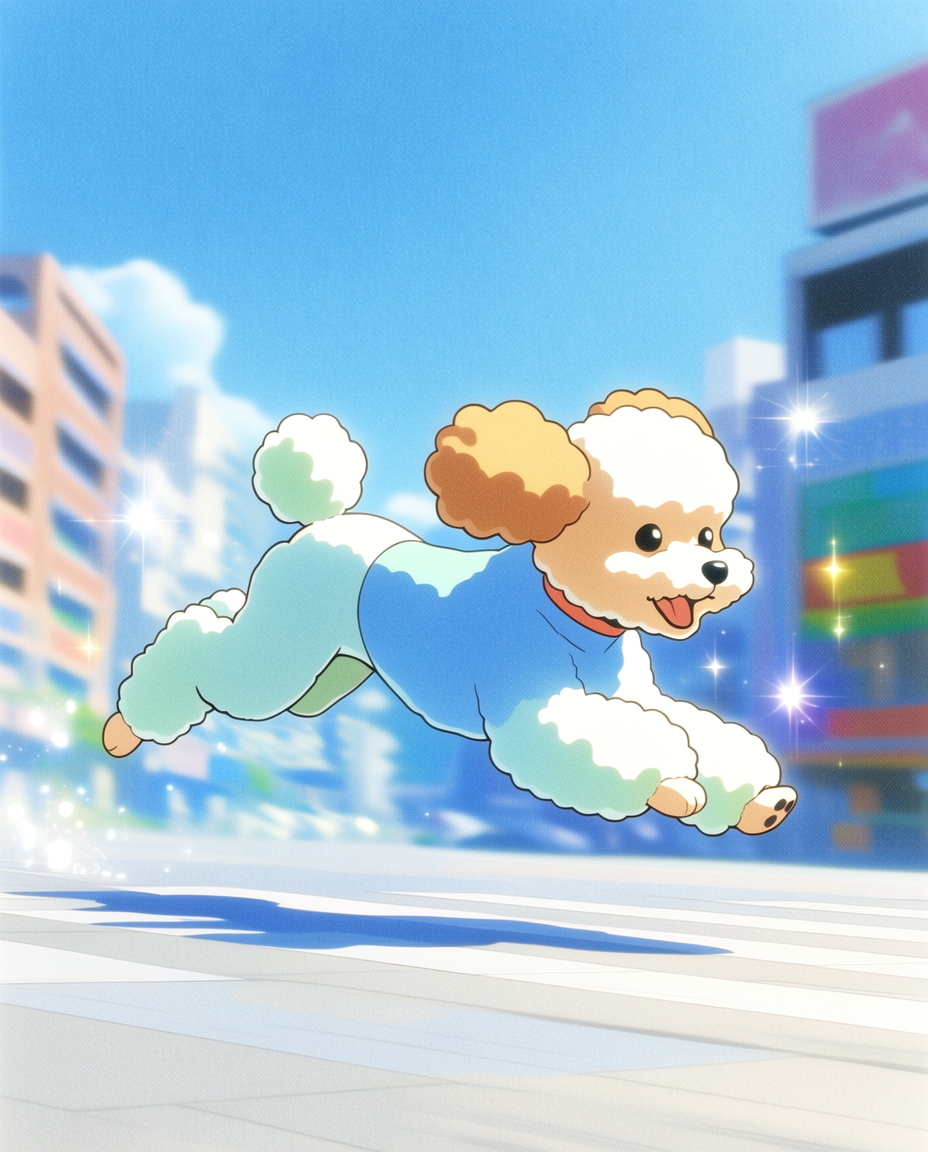
Keep the prompt steady and move one slider at a time. These examples show how the Movement and Complexity sliders can change the generated image while preserving the core idea.
"cute poodle, city street, colorful illustration, playful composition"
Creativity Modes
Use Raw when your prompt is already precise. Use Low or Medium when you want Krea 2 to add useful visual detail without drifting too far. Use High when you want the model to explore the idea more aggressively.
Try Random Mode
Random mode changes the slider settings each time you submit a generation.
It is useful when you want to explore the shape of an idea quickly. Turn it on, generate a few results, and look for the direction that feels closest. Once you find something interesting, turn Random mode off and fine-tune the individual sliders from there.
A Few Starting Points
For clean design, icons, and editorial illustration, try lowering Complexity and keeping Movement near neutral.
For cinematic images, fashion, worlds, or expressive character work, try raising Intensity and adding a small amount of Movement.
For precise prompts, set Creativity to Raw or Low. For loose prompts, set Creativity to Medium or High and let Krea 2 build more of the visual language around your idea.
Try Generative Sliders
Open Krea 2 and use Generative Sliders to shape your next image generation.
Generate with Krea 2Krea 2 Slider FAQ
Generative Sliders are currently available for everyone.
For Intensity, Complexity, and Movement, 0 is the neutral setting. Moving left reduces the quality; moving right increases it.
Random mode changes the Generative Slider settings every time you submit a generation, making it easier to explore a wide range of outputs.