













Create
Edit & enhance
Intro to Krea Agent
A short guide to your first sessions
Open Krea AgentThe basics
What Krea Agent is. A chat that runs Krea's models.
Describe what you need in plain language. A large language model reads it, plans the steps, picks a model from the 150+ in Krea, writes the prompts, checks the results and tries again if anything is off. It works like Claude or ChatGPT, except that what comes back is images, video and other files.
You
“Three key visuals for the spring launch, in our brand colors.”
Language model
Claude, GPT, Gemini…
Plans the steps, picks a model, writes the prompts and checks the result.
Krea models
150+ models
Image, video, 3D, audio and enhance.
Result
Images, video and files, saved in your session.
Getting started
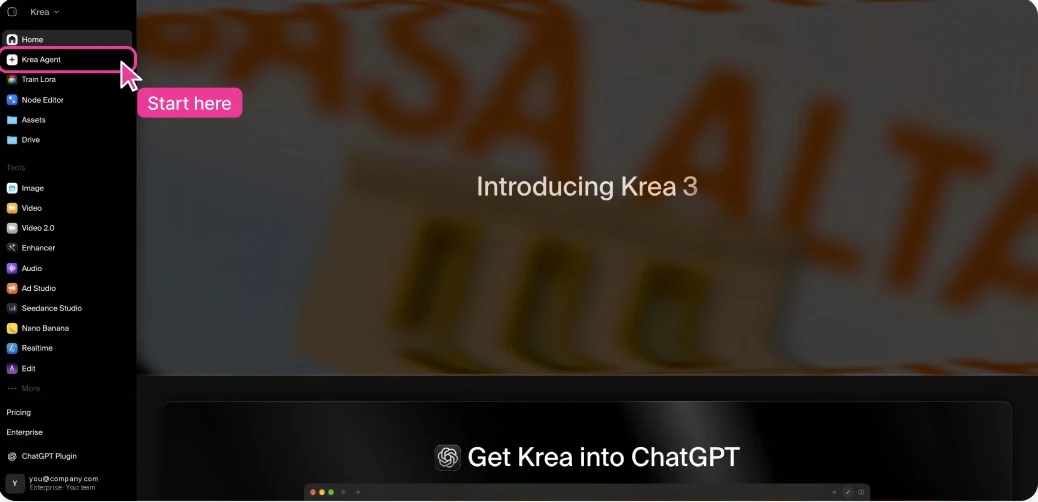
Where to find it. Two clicks from anywhere in Krea.
- 01
Open krea.ai and sign in.
- 02
Click Krea Agent in the left sidebar.
Or go straight to krea.ai/agent.
- 03
Describe what you want to make.
Your first message starts a session.
The interface
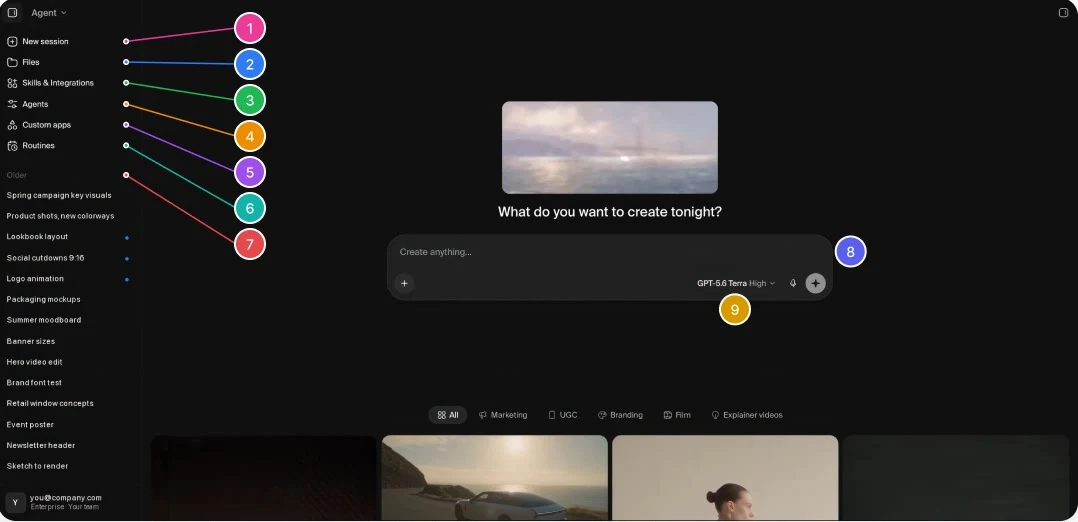
Find your way around. Everything starts from the sidebar.
-
New session
Start a fresh conversation.
-
Files
Your library: the context the agent reads when generating.
-
Skills & Integrations
Connect your tools and add skills.
-
Agents
Custom agents set up for your preferences.
-
Custom apps
Reusable mini-tools the agent builds.
-
Routines
Recurring tasks the agent runs for you.
-
Sessions
Past conversations, ready to pick up again.
-
Prompt box
Type, attach files with +, or dictate.
-
Model & effort
Choose the model and how much effort it uses.
How it works
Sessions. Work with it as if it were another teammate.
- 01
Ask, look, give feedback.
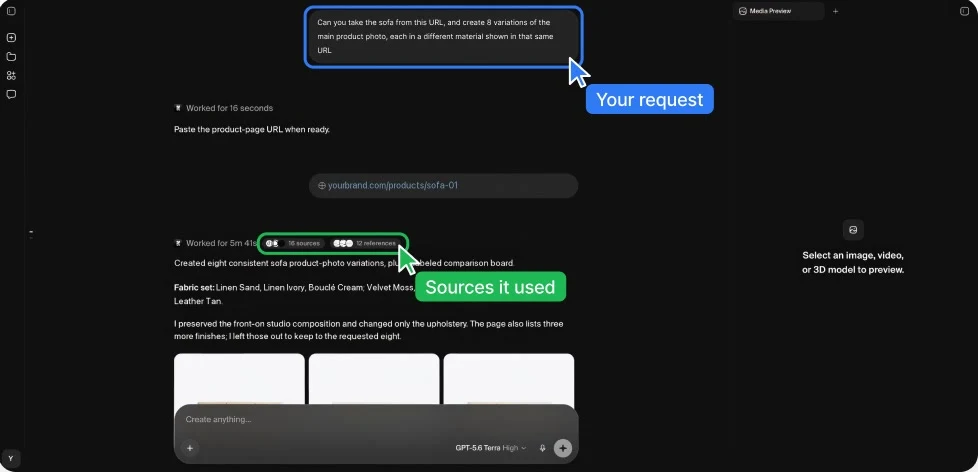
Each session is a running chat, like in Claude or ChatGPT. Type in plain words, like “make the third one warmer.”
- 02
It keeps the thread.
Everything said and made in the session stays in context.
- 03
It shows its work.
You can see the sources it read, the references it used and the models it ran.
- 04
Come back any time.
Sessions are saved in the sidebar. You can rename them, pick up where you left off, or share them with your colleagues.
How it works
Sessions, in practice. One link, eight materials.
Input

The brief
Can you take the sofa from this URL, and create 8 variations of the main product photo, each in a different material shown in that same URL.
Tip: say how many you want and where to look. It reads the page for you.
Result
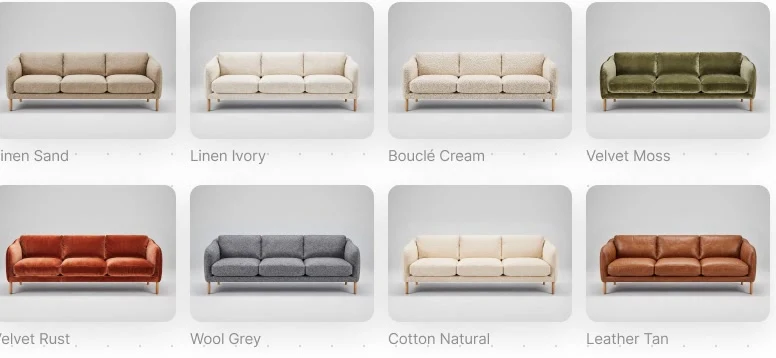
Same sofa, same angle, same light. Only the upholstery changes, and every finish comes from the product page.
Two key differentiators
Two key differentiators. Context and formats.
01
Give it context
Put your brand, products and past work in Files. The agent reads them in every session, so the results fit your company and follow your visual style.
02
Use any format
It reads PDFs, layered Photoshop files and fonts, and it can make them too, along with transparent PNGs, GIFs, video and 3D.
Two key differentiators
Context Get results that fit your previous work.
Files is your library: when your brand, products and past work are there, every session can draw on them, so results fit your company and not only the prompt.
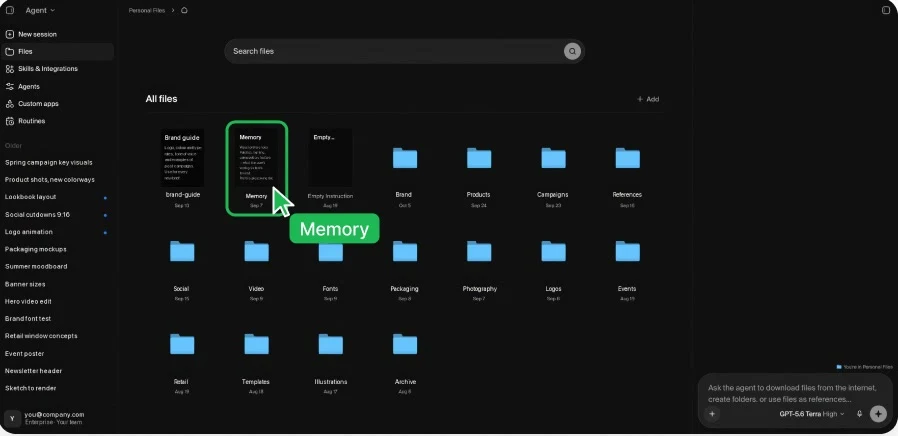
A library that works
-
Brand
Logo, guidelines PDF, fonts, palette
-
Products
Packshots, specs, materials
-
Campaigns
Past work you like
-
References
Moodboards, styles, competitors
-
Memory
How you and your team like to work
Two key differentiators
Setting it up. You don't even need to organize it first.
Put everything into one session and tell the agent how to sort it. It files, names and summarizes the material, and every later session can use it.
Example prompt
Here's everything we have: our brand book PDF, our fonts, 40 product photos and last season's campaign. Organize it into folders for Brand, Products and Campaigns, name everything clearly, and write a one-page summary of our visual identity.
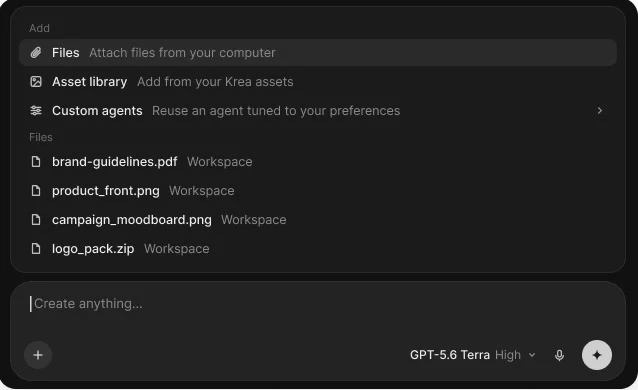
Add context from the + in the prompt box
- 01
Files
Upload from your computer.
- 02
Asset library
Anything you've made in Krea.
- 03
Custom agents
An agent set up for your preferences.
Two key differentiators
Formats Files in, files out.
The agent reads the files your team already works with, like PDFs, layered Photoshop files and fonts, and it can make them too. If you would ask Claude to do something with a document, you can ask Krea Agent to do it with these files.
It reads
- PDF Brand books, briefs, decks
- PSD Layered Photoshop files
- FONT Your brand fonts
- IMAGE Product photos and references
- VIDEO Footage and past films
- URL Websites and product pages
It makes
- PDF Lookbooks, decks, one-pagers
- PSD Layered files your designers can edit
- FONT Display and headline fonts
- PNG Transparent cut-outs
- GIF Loops and animated variations
- VIDEO Clips, cutdowns, new ratios
- 3D Models from an image or an idea
Getting more out of it
Model and effort. Set the model and the effort level.
The picker in the prompt box sets which language model runs the session (Claude, GPT, Gemini and others) and how much effort it puts into planning and checking.
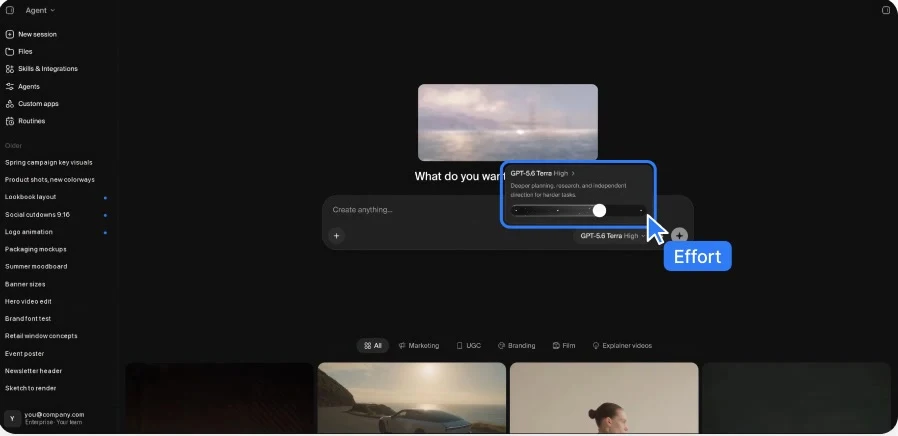
-
Low
Fast and light, for quick, well-understood tasks.
-
Medium
A good everyday default.
-
High
Deeper planning and research for harder briefs.
-
Extra High
A frontier reasoning model for complex, high-stakes work.
Connectors
Connectors. Connect the tools your team uses.
Add connectors in Skills & Integrations. The agent can then, for example, read a brief in Notion, generate the images, save them to Google Drive and post a preview in Slack, all in one session.
Productivity
- Notion
- Linear
- Airtable
- Google Docs
- Google Sheets
Communication
- Slack
- Gmail
- WhatsApp Business
- ManyChat
Files & storage
- Google Drive
- Dropbox
- Microsoft OneDrive
- Frame.io
Marketing & social
- Meta Ads
- TikTok Ads
- YouTube
- Are.na
Developer & design
- Figma
- Webflow
- GitHub
- Supabase
Your own
- Custom MCP
Any tool with an MCP server, added with New integration.
What the agent can read or write depends on each connector's permissions. Workspace admins can adjust them.
Usage
Usage. How the agent uses compute units.
Agent work is paid from your workspace's usual compute unit (CU) balance. Each session has two costs:
01
Generations
Each image, video, upscale or audio clip costs the same CUs as making it in the Image or Video tool. The model the agent picks sets the price.
02
LLM tokens
The language model that plans, reviews and retries is billed by token and converted to CUs. Higher effort uses a more capable model and more reasoning, so more tokens.
Good to know
- 01
Big jobs ask first.
Above a CU threshold, which admins can set, the agent asks before generating.
- 02
Admins can see it.
Usage Statistics → filter by source → Agent.
Ways to spend less: Start on Medium or High effort, add context first so it gets things right sooner, and ask for 3 options before 50 variants.
Get started
Try it. Four prompts for your first session.
Campaign concept
Here's our website: [URL]. Build a campaign concept from it: three key visuals, a 9:16 cutdown and a short film.
Sizes and formats
Take this hero image and make every size we need: 1:1, 4:5, 9:16 and 16:9. Send the 16:9 as a layered PSD and the product as a transparent PNG.
Sketch to render
Turn this sketch into a photoreal render, then give me four lighting moods for the four seasons of the year.
Set up context
Organize everything I just uploaded into a brand library and summarize our visual identity.
Go to krea.ai/agent, start a session and describe what you need.
Walkthroughs
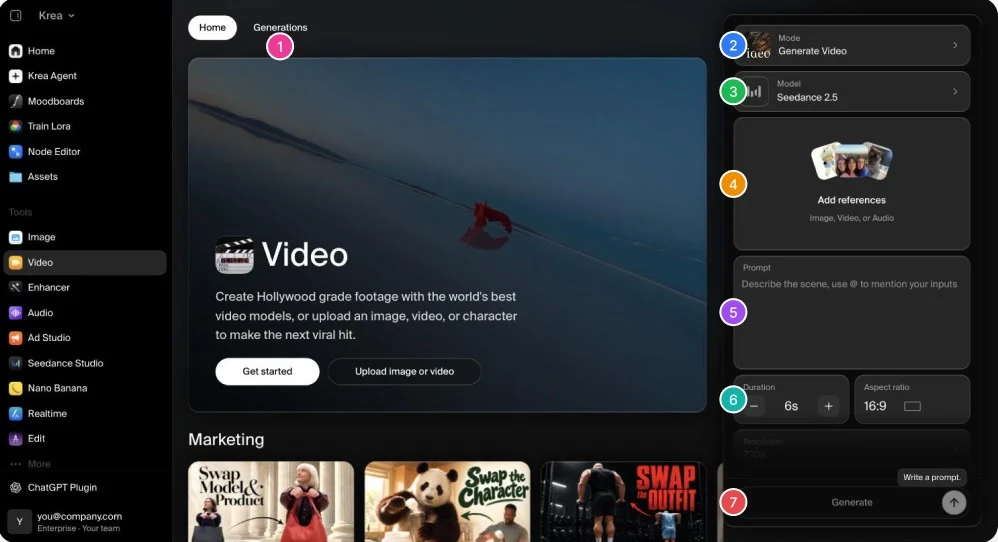
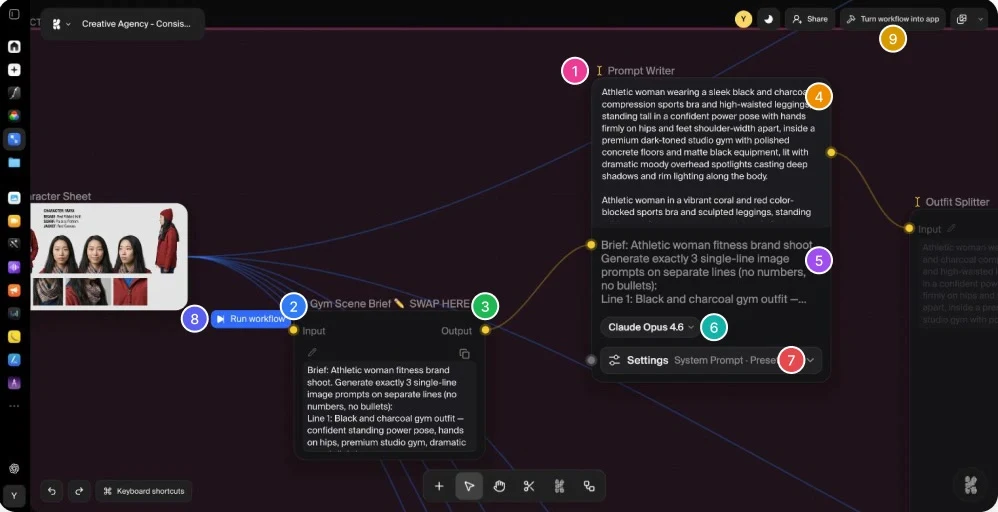
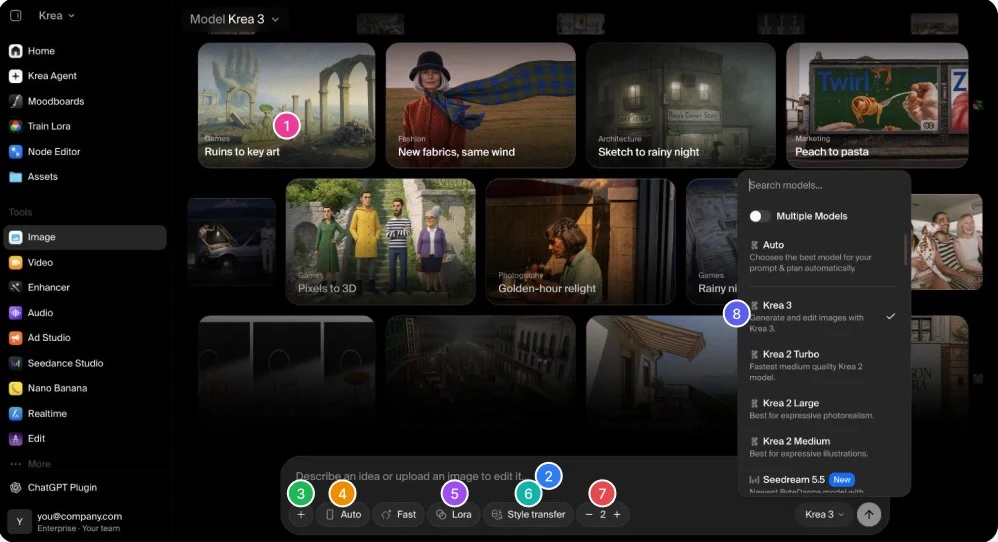
Getting the most out of Krea Agent
Screen recordings of real sessions, start to finish. More are on the way.
Next guide
Intro to Krea
The tools most teams start with, in the order you will use them, and a plan for your first hour.
Questions along the way?
Your Krea account team can walk your team through any of this.